Daily Language Practice
Read a short text in two languages, pick key words, write one sentence, then expand to a full comment — with AI coaching that explains corrections in your native language.
~10 minutesWhat it is
Comment Coach gives you a short text every day and three exercises that build on each other. You read the text in the language you are learning, pick a few key words, write one sentence about what it means, then expand that into a full spoken comment. At each step, the AI coach (named Hoot) checks your grammar, suggests better phrasing, and explains every correction in your native language.
It is free. Sign up at comment.coach with a name and email — no app to download, it works in the browser on any phone.
Set up two languages
Go to Settings and choose your primary language (the one you are learning) and your secondary language (the one you already speak). When a text is available in both, Comment Coach shows them side by side — the language you are learning on the left, your native language on the right.
This works automatically with the built-in sources. If you import an EPUB in both languages, those pair up too.
Read today's text
Open Daily Reflection. Today's text is already there, side by side in both languages. Read it through once — you do not need to understand every word. The bilingual view lets you glance at the right column when a sentence is unclear.
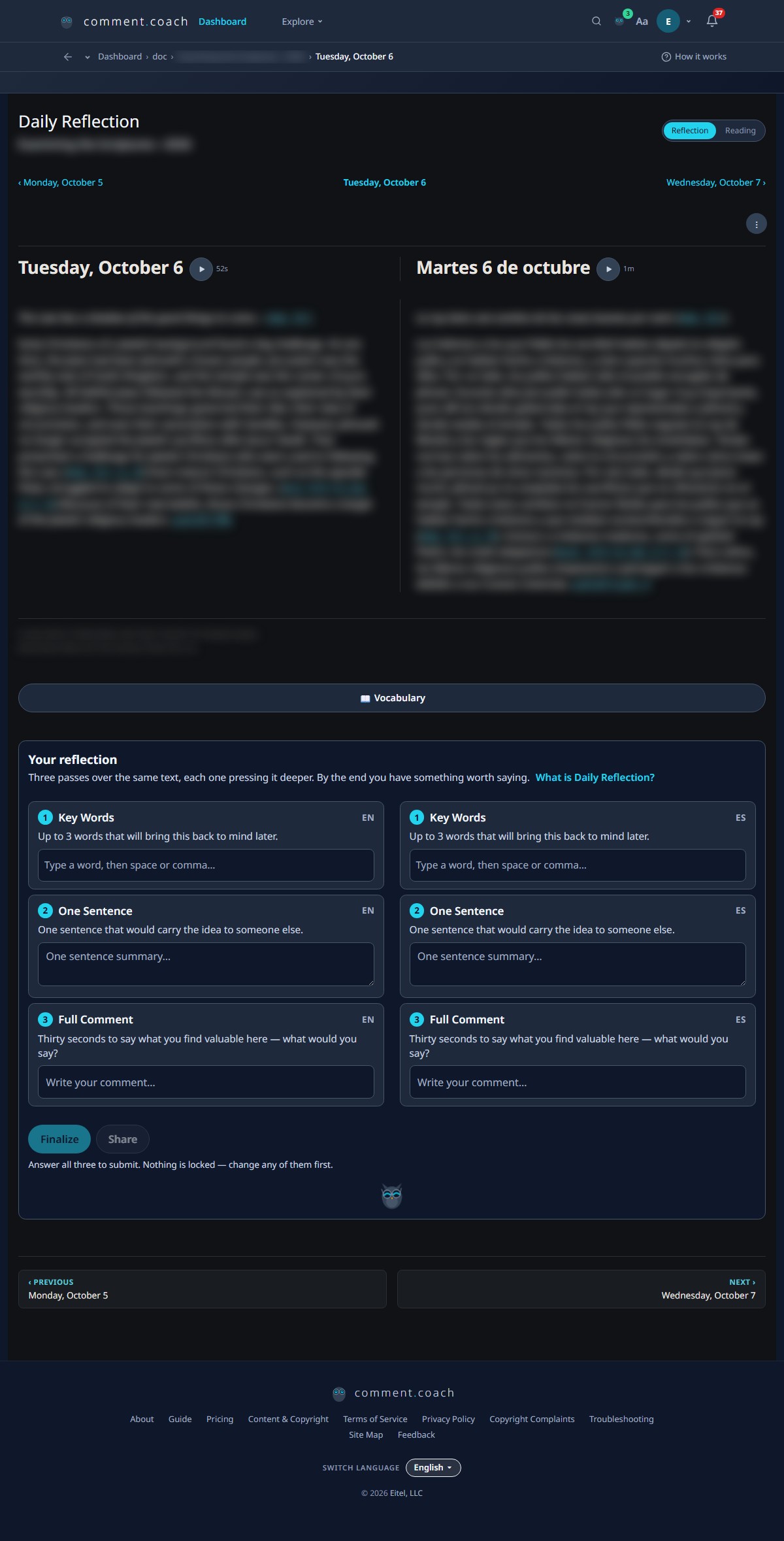
Vocabulary scan
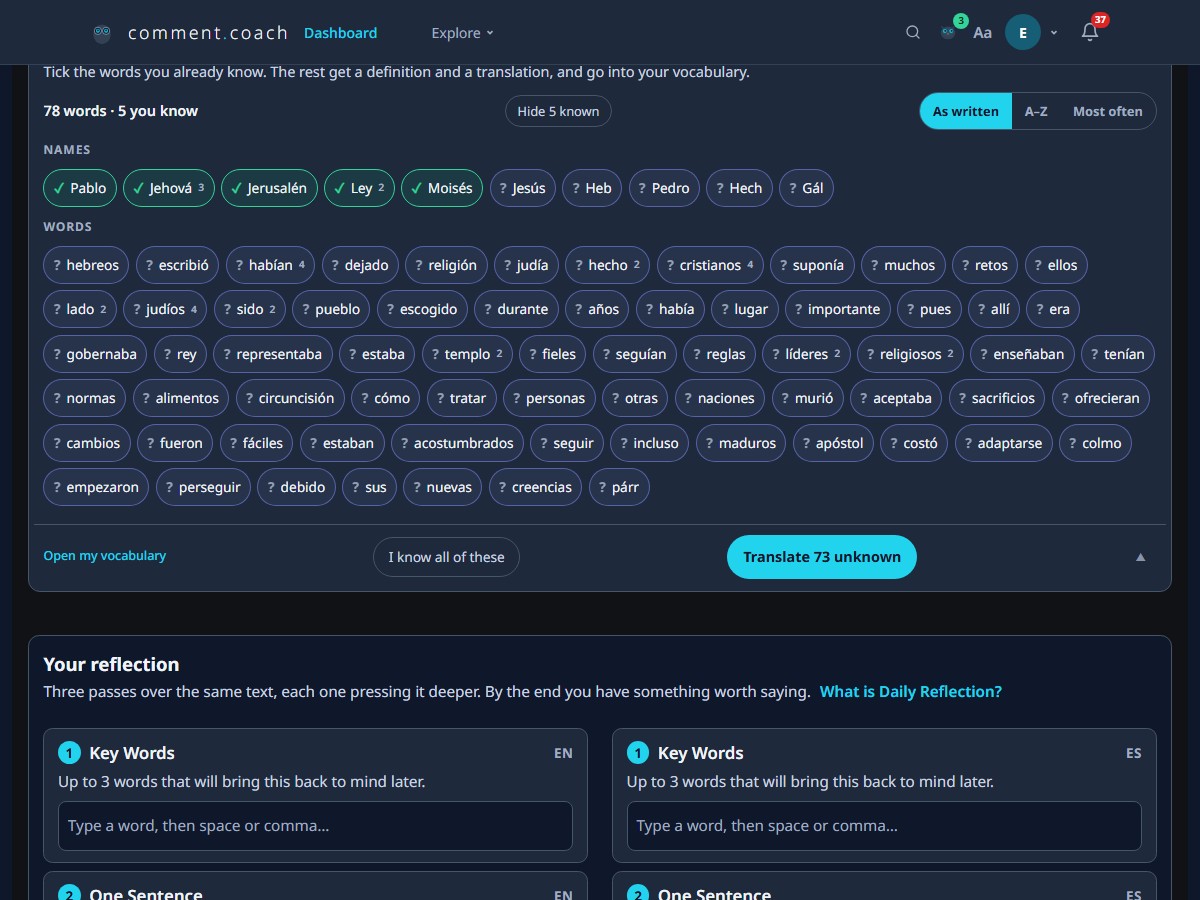
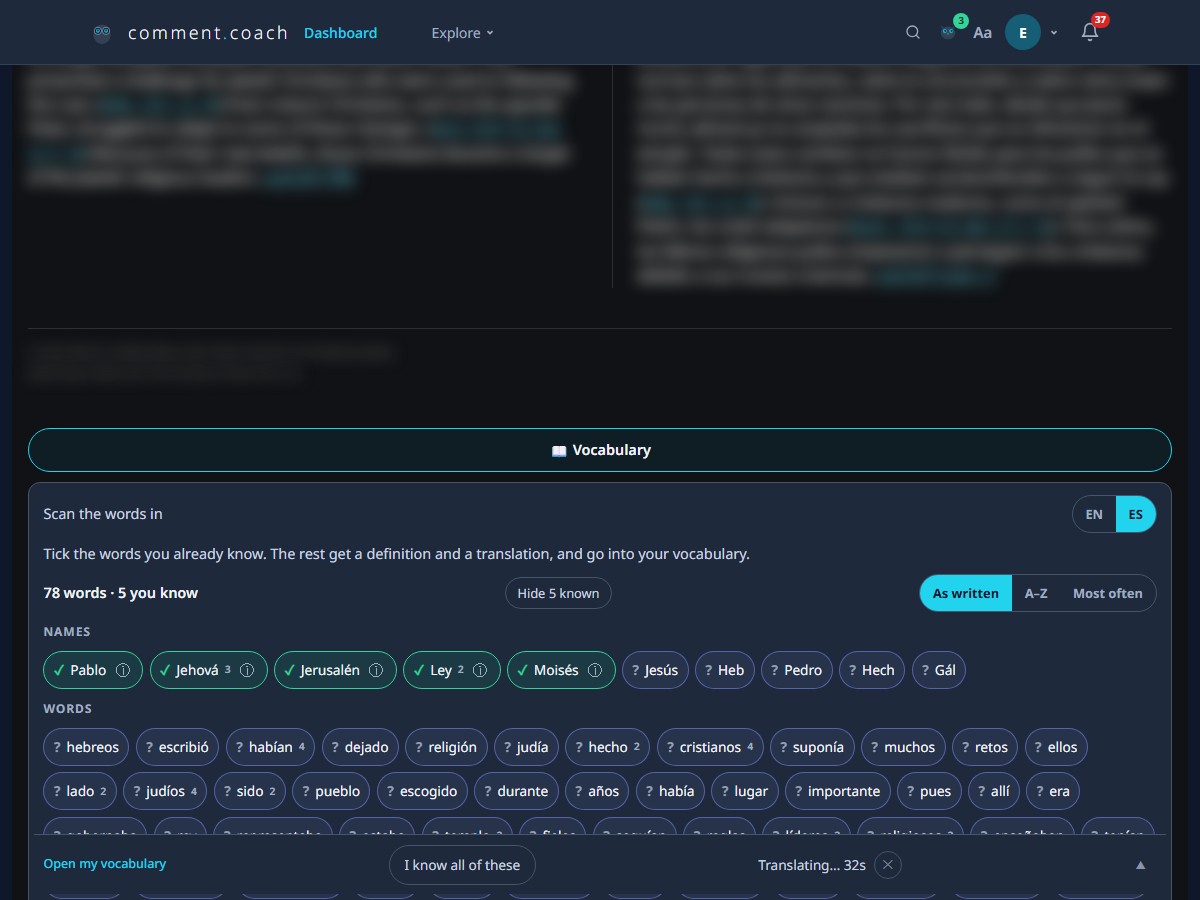
Below the reading, tap Vocabulary. The app scans the passage and shows every word as a tappable chip. Words you have already marked as known show a ✓; unknown words show a ?. You can sort by text order, A–Z, or frequency, and toggle known words off to focus on what you still need to learn.
Tap a chip to mark it known or unknown — the app remembers your answer across sessions. This alone is a useful reading check: scanning for the words you don't know surfaces exactly where the text is hard.
When you are ready, tap Translate. The app translates every unknown word at once, showing the definition in the language you are learning and the translation in your native language. The results are cached — other readers studying the same passage pay nothing for the same words.
Word-in-context, audio, and Dig Deeper
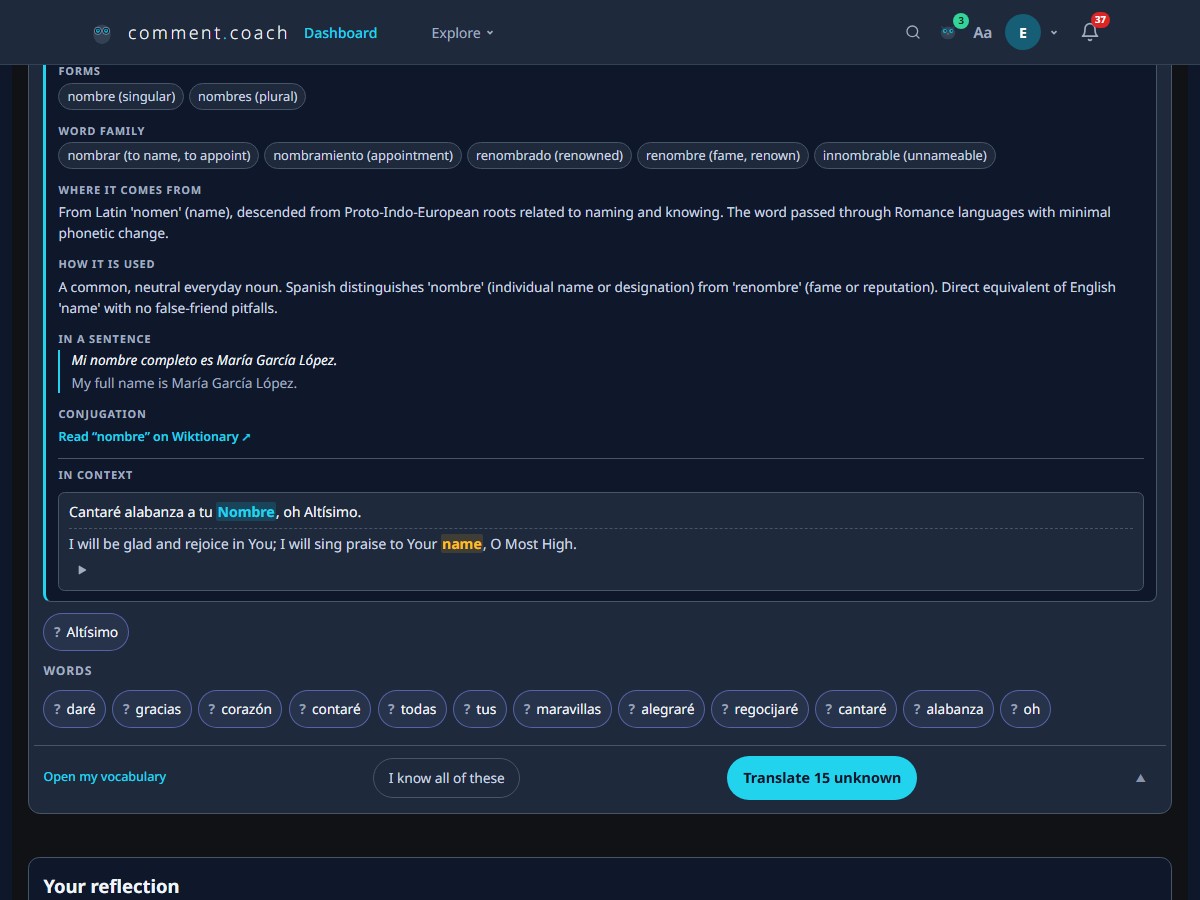
Tap any word chip to open its detail panel. Three things happen:
- Word-in-context — every sentence in the passage that contains this word is shown, with the word highlighted. If you have a second language set, the parallel sentence appears alongside with the translation highlighted. No AI call, no credits — this is pure text matching and it is free.
- Audio — tap the speaker icon to hear the word, its translation, and both definitions spoken aloud, each in the correct language voice. Audio works for guests and free accounts.
- Dig Deeper — tap to get the word's lemma (dictionary form), part of speech, related forms shown as tappable pills, word family, origin, a usage note, and a bilingual example sentence. For verbs, you also get a conjugation table. This is an AI call and uses credits.
Every word you interact with is saved in your personal vocabulary. Over time, this builds into a library of exactly the words you have encountered in real reading — not a textbook word list, but your words, from your reading.
Your vocabulary library
Every word you mark, translate, or dig into is collected in your Vocabulary page. You can search it, filter by language, and review words you have learned over weeks and months. It is a vocabulary builder that grows from your actual reading, not from a pre-made deck.
The vocabulary library is a subscriber feature. Everything else — scanning, marking, translating, audio, dig deeper, word-in-context — works on a free account with AI credits.
The daily exercise
Now that you have read the text and reviewed the vocabulary, write your response. Three steps:
- Key Words — pick 1–3 words or phrases from the text that stand out. This is a reading check with no pressure.
- One Sentence — write a single sentence about what the text means to you. Hoot highlights grammar errors, explains why in your native language, and suggests a correction.
- Full Comment — expand your sentence into 2–4 sentences, as if you were saying it out loud. Hoot coaches again on grammar, natural phrasing, and vocabulary.
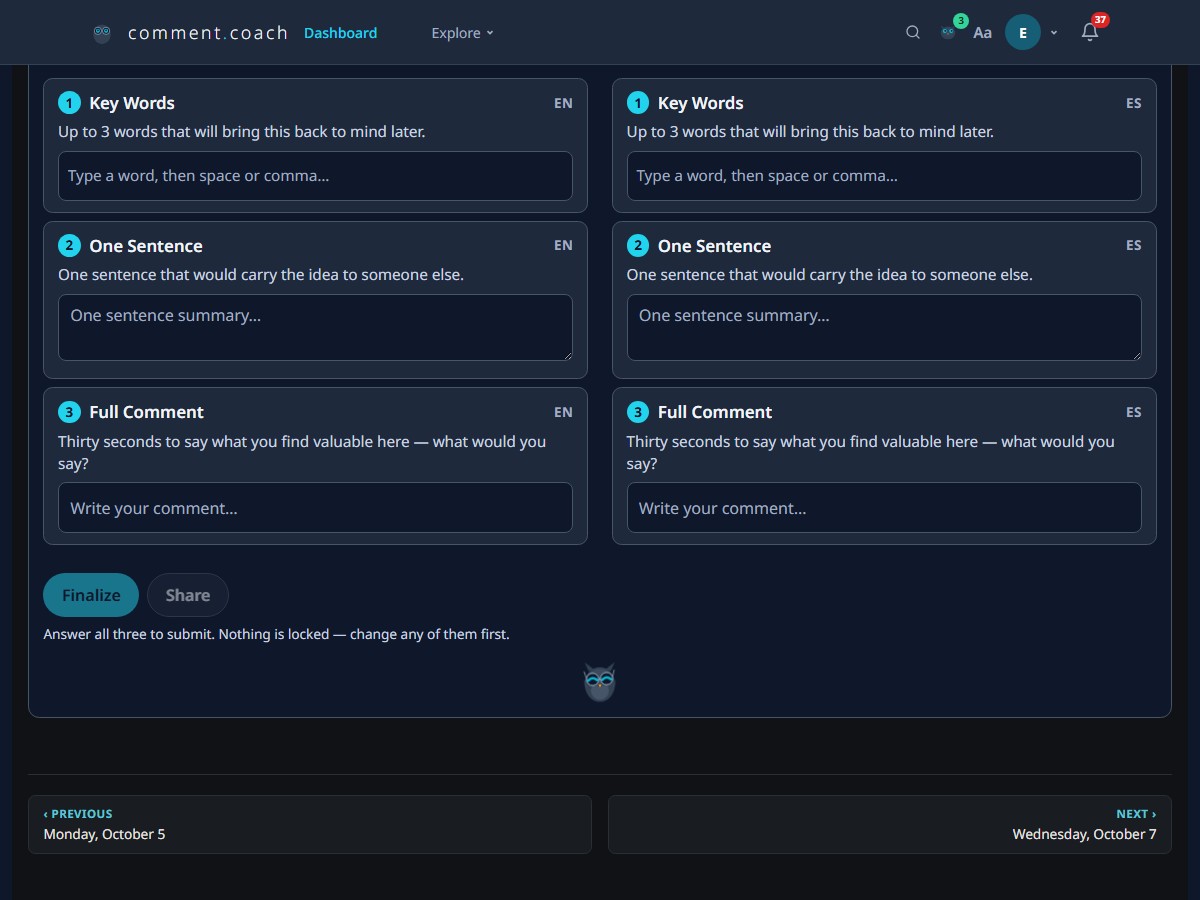
What the coaching looks like
Tap Ask Hoot after writing your sentence or comment. Hoot's response includes:
- Grammar corrections — specific errors with explanations in your native language. "You wrote I have went — in English, the present perfect uses the past participle: I have gone."
- Vocabulary suggestions — more natural or precise word choices. "Instead of very big, you might say enormous or massive."
- Phrasing tips — how a native speaker would say the same thing. Your meaning stays unchanged; the surface becomes more natural.
Every correction is a suggestion. You decide whether to accept it. Hoot never rewrites your comment from scratch.
Practice with others
If your teacher has set up a Circle, join it with the 5-letter code they gave you. Inside the circle, you see your classmates' comments on the same text. Reading how someone else phrased the same idea is one of the fastest ways to learn.
No teacher? You can create your own circle and invite friends who are learning the same language.
Choose your reading material
Four built-in options, plus anything you import:
- Wisdom — a short fable or maxim for every day, from Aesop and La Rochefoucauld. Ships with the app, works offline. The Spanish is a translation of the same English, so the two columns are the same idea twice — ideal for comparing how each language says it.
- Scriptures — a Bible passage for every day, from public-domain translations.
- Import an EPUB — any book with daily readings. For example, jw.org offers a free EPUB with a scripture and short commentary for every day of the year, in hundreds of languages — so you can import it in two languages for side-by-side reading.
- Paste your own — any text you want to practice with.
What's free and what's paid
You can start without an account. The first time you mark a vocabulary word, Comment Coach creates a guest account automatically — no form, no password.
| Feature | Guest | Free account | Subscriber |
|---|---|---|---|
| Read bilingual text | ✓ | ✓ | ✓ |
| Vocabulary scan & mark known/unknown | ✓ | ✓ | ✓ |
| Word-in-context (parallel sentences) | ✓ | ✓ | ✓ |
| Audio playback | ✓ | ✓ | ✓ |
| Key Words / One Sentence / Full Comment | ✓ | ✓ | ✓ |
| Translate unknown words | — | ✓ (credits) | ✓ |
| Dig Deeper (lemma, forms, conjugation) | — | ✓ (credits) | ✓ |
| AI coaching from Hoot | — | ✓ (credits) | ✓ |
| Vocabulary library | — | — | ✓ |
| Sync across devices | — | — | ✓ |
A free account comes with AI credits. When they run out, you can bring your own API key (from Anthropic or OpenAI) or subscribe. Subscribing also unlocks the vocabulary library, device sync, and larger circle sizes.
Tips
- Do it every day. Five minutes a day beats an hour once a week. The text changes daily, so there is always something new.
- Scan vocabulary before you write. Tap Vocabulary first, mark the words you know, translate the rest. When you sit down to write your sentence, the unfamiliar words are already in your head.
- Listen to the audio. Hearing the word in both languages — definition and translation — locks in pronunciation and meaning faster than reading alone.
- Write as if you were speaking. The exercise is designed for spoken language. Use contractions, keep it conversational. Hoot's coaching is calibrated for how you would say it, not how you would write an essay.
- Read both languages. The bilingual view is not a crutch — it is the point. Seeing how each language expresses the same idea builds intuition that no grammar textbook can.
- Use Dig Deeper on words that keep coming back. If a word shows up in multiple passages and you still cannot use it in a sentence, dig deeper to see its forms, family, and conjugation. That is the word that is ready to move from passive to active vocabulary.
- Ask Hoot more than once. Revise your comment after the first round of coaching, then ask again. The second round catches things the first didn't, and the act of revising is where the learning happens.