Using Comment Coach in Your Language Class
Your students write what they'd say out loud, get grammar corrections explained in their native language, and practice with each other in a circle — all from their phone.
~8 minutesWhat it is
Comment Coach helps people prepare spoken comments on something they've read. For a language class, that means: your students read a passage in their target language, write a response as if they were about to say it in class, and get coaching on grammar, vocabulary, and phrasing — with explanations in their native language.
It is free to use. Students sign up at comment.coach with just a name and email. No app store download — it runs in the browser and works on any phone.
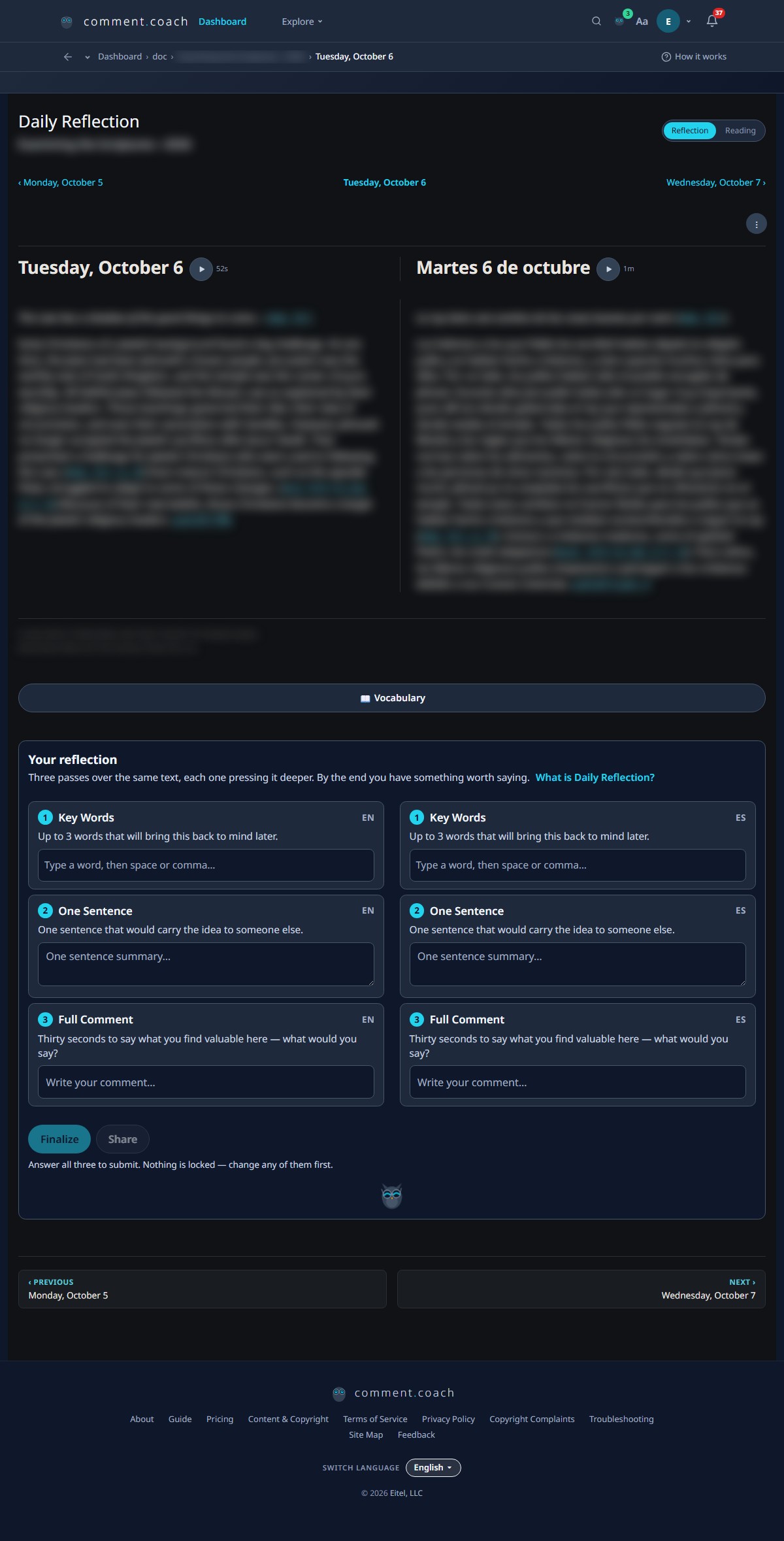
Daily Reflection — a daily exercise your students can do on their own
The Daily Reflection page gives students a short text every day. There are three built-in sources: Wisdom (proverbs and reflections), Scriptures (a Bible passage), and any EPUB you import — a textbook chapter, a graded reader, a published daily devotional.
The exercise has three steps:
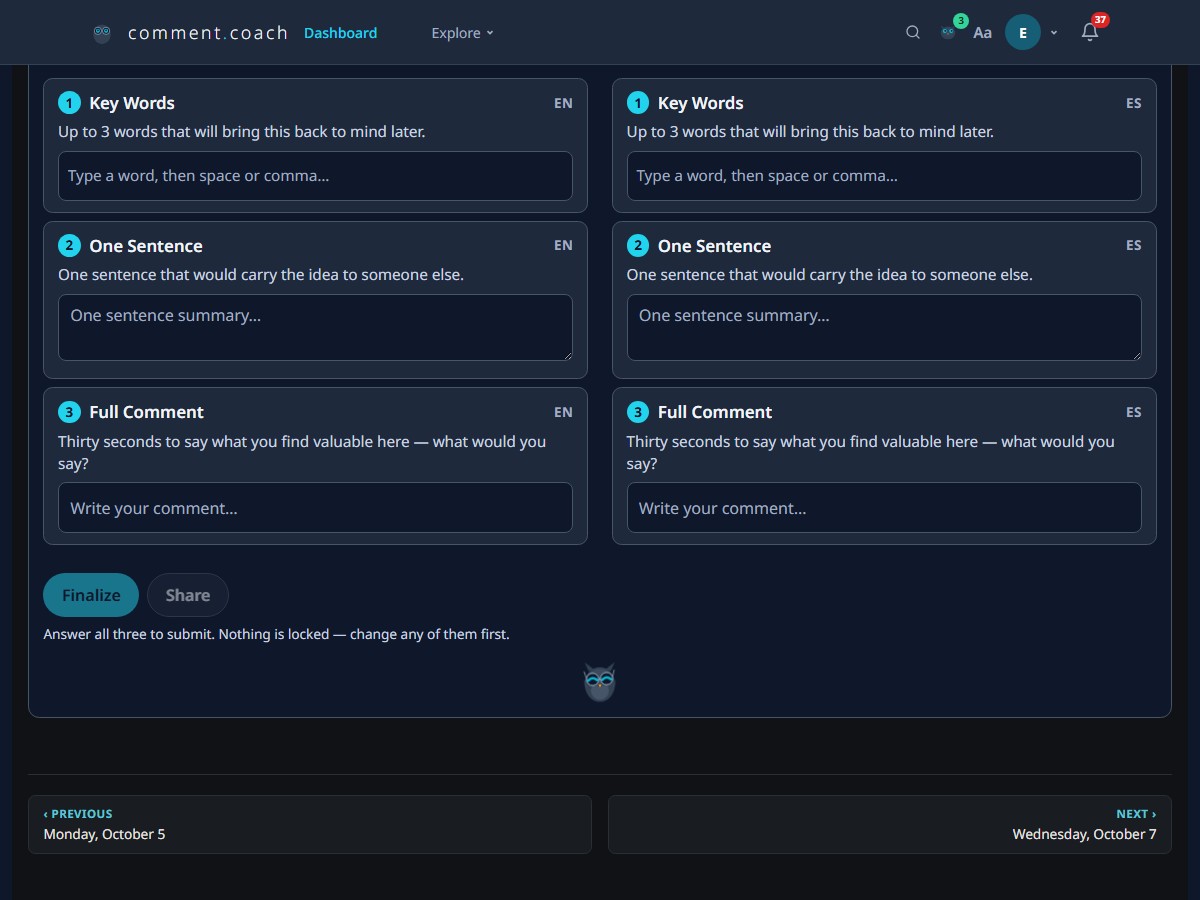
- Key words — the student picks 1–3 words or phrases from the text that stand out to them. This is a reading comprehension check with low pressure.
- One sentence — the student writes a single sentence about what the text means to them. This is where grammar coaching kicks in: Hoot highlights errors, explains why in the student's native language, and suggests a correction.
- Full comment — the student expands their sentence into a full spoken response (2–4 sentences). Hoot coaches again on grammar, natural phrasing, and vocabulary.
Bilingual reading — side by side
Students can set a primary and secondary language in their account. When a text is available in both, Comment Coach shows them side by side — the target language on the left, the native language on the right. This works automatically with the built-in sources and with any EPUB you import in both languages.
To set it up: go to Settings, choose the student's primary language (the one they're learning) and their secondary language (the one they already speak). The bilingual toggle appears wherever a paired text is available.
Import your own materials
Any EPUB file works. If you use a published textbook, a graded reader, or any book available as an EPUB, students can import it from their phone's file picker. The app parses the full structure — chapters, paragraphs, and any embedded questions.
For example, jw.org offers a free EPUB with a scripture and short commentary for every day of the year, in hundreds of languages — so students can import it in two languages for side-by-side reading.
To import: tap the ⋮ menu on Daily Reflection, choose Add a source, and pick the file. For a full walkthrough, see Import an EPUB on iPhone.
Circles — group practice for your class
A Circle is a private group where students share their comments with each other. You create the circle, get a 5-letter join code, and share it with your class.
- Go to Circles and tap Create a Circle.
- Name it (e.g. "Spanish 201 — Fall 2026").
- Share the join code with your students — they enter it at Circles on their own device.
Inside the circle, everyone sees each other's comments on the same text. Students can read how their classmates phrased the same idea — a powerful learning tool. Free accounts support up to 8 members per circle; a subscriber account supports up to 30.
What the AI coaching looks like
When a student writes a comment, they can tap Ask Hoot to get coaching. Hoot's response includes:
- Grammar corrections — specific errors highlighted with explanations in the student's native language. "You wrote I have went — in English, the present perfect uses the past participle: I have gone."
- Vocabulary suggestions — more natural or precise word choices. "Instead of very big, you might say enormous or massive."
- Phrasing tips — how a native speaker would say the same thing. The student's meaning stays unchanged; the surface becomes more natural.
Hoot never rewrites the student's comment from scratch. The correction is a suggestion — the student decides whether to accept it. This keeps the student in control and makes the coaching feel like a conversation, not a red pen.
A typical class session
Here's one way to use it in a 50-minute class:
- Before class (5 min homework): Students do the Daily Reflection exercise on their phone — key words, one sentence, full comment. They ask Hoot for coaching and revise.
- In class (10 min): Open the Circle. Read a few student comments aloud. Discuss the grammar points Hoot flagged — they're already in the student's language.
- In class (15 min): Share a new passage with the circle. Students write a fresh response in class, on their phone. Walk the room while they write.
- In class (15 min): Students read each other's responses in the circle. Pick two or three that use interesting vocabulary or phrasing. Discuss.
- Wrap-up (5 min): Students revise their in-class comment based on the discussion. Their final version stays in their library for review.
Tips for teachers
- Start with Daily Reflection as homework. The three-step exercise (key words, one sentence, full comment) gives students a low-stakes way to practice every day. Review their comments in the circle before class.
- Use the bilingual view for reading comprehension. Students can toggle between their target language and their native language. Assign a passage and ask them to identify three new vocabulary words before writing their comment.
- The circle is a classroom, not a chat room. Students see each other's comments on the same passage, not a running conversation. This keeps the focus on the text and on writing quality.
- Import your own materials. If your textbook or reader is available as an EPUB, students can import it directly. The app parses chapters and paragraphs automatically.
- Free accounts do everything a student needs. AI coaching, Daily Reflection, bilingual reading, and joining a circle are all included in the free tier. You only need a subscriber account if your class has more than 8 students in one circle.