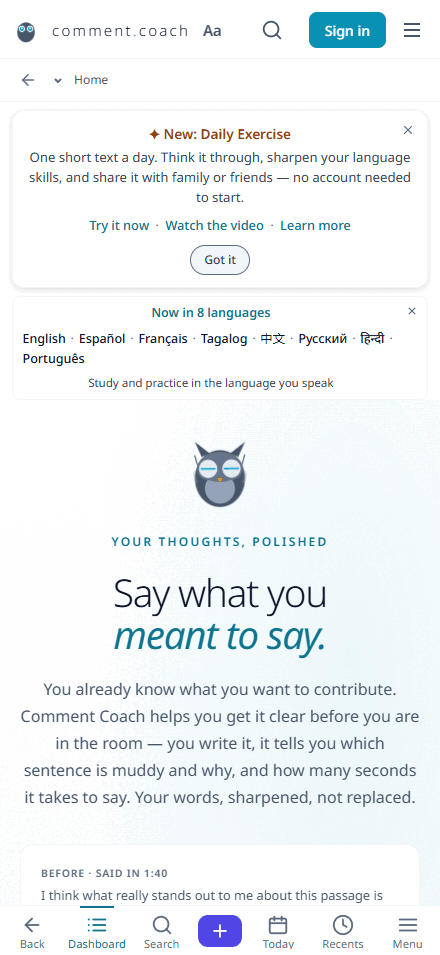
Daily Practice
One short text a day, and three exercises on it: key words, one sentence, a full comment — with AI coaching, vocabulary tools, and text-to-speech.
~5 minutes ▶ Watch the shortsWhat it is
A short passage, and three exercises that build on each other: the words that capture it, one sentence that distils it, then a full comment with coaching.
Everyone on the built-in plan reads the same passage on the same calendar date, which is what lets a family or a study group compare answers without arranging anything. That is the difference from Daily Reading, which keeps your own place in a sequence instead.

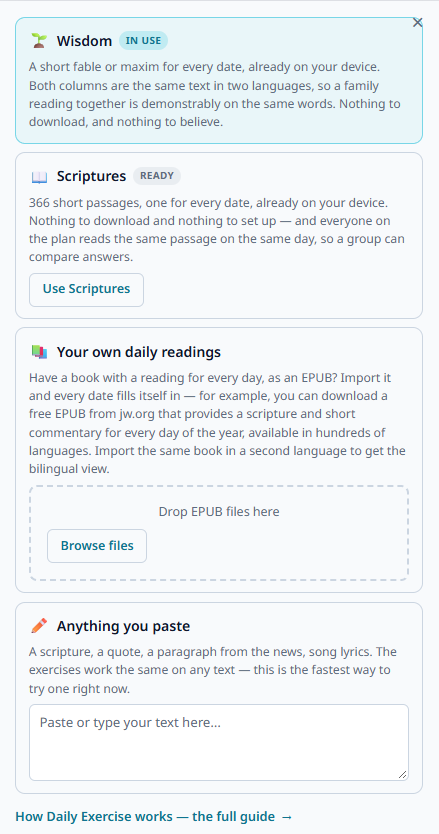
Choose your source
Five ways to get the day's reading, and two of them need nothing from you at all:
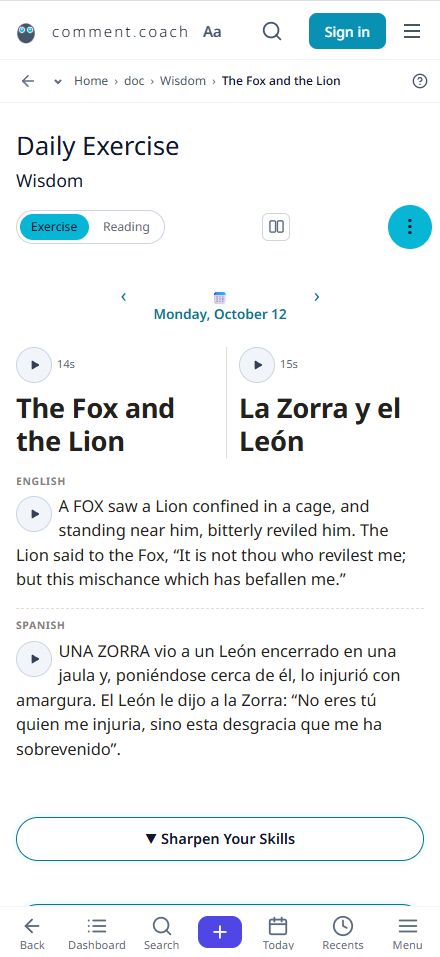
- Fables and Maxims — What you get the first time you open the page. A short fable or maxim for every date of the year, from Aesop and La Rochefoucauld. Both are out of copyright, so they ship with the app and work offline — and because the Spanish is a translation of the same English, the two columns are the same words twice. That is what makes it worth reading in two languages at once.
- Scriptures — A short Bible passage for every date, from the public-domain translations that ship with Comment Coach. One tap away in the same list.
- Your own daily readings — If you have a publisher's daily reading as an EPUB, import it and it takes over: today's text loads automatically, its scriptures open where they are cited, and every tool on this page works on it. Import the same book in a second language and you get the bilingual view.
- A year you wrote yourself — A plan file is one small JSON file: a month, a day, and the reading in one or both languages.
- Paste your own — Any text you want to reflect on: a scripture, a quote, a news excerpt, song lyrics, anything.
Switch between whatever's available with the buttons next to the date. An imported book wins by default; otherwise you start on Fables and Maxims.
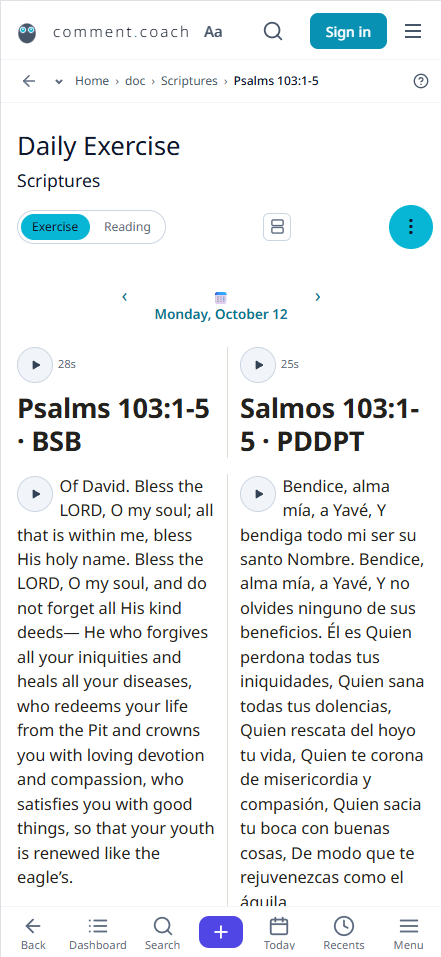
Choose your languages
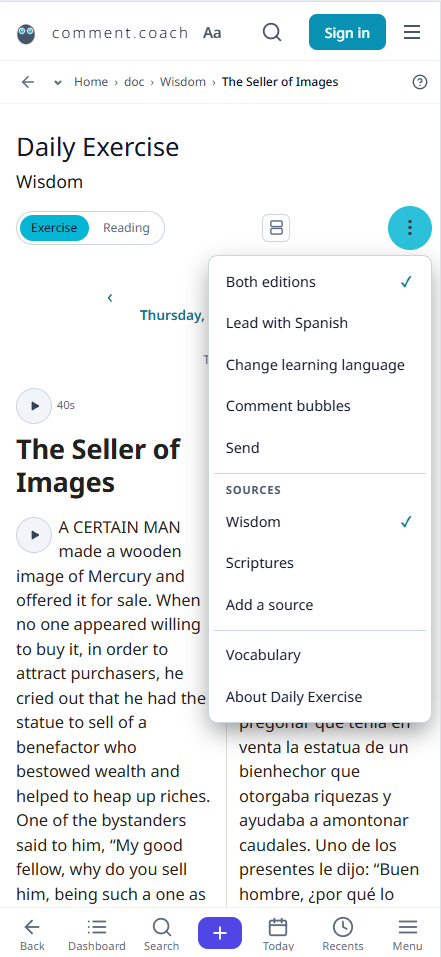
Tap the language button in the header to set your primary language (the one you are learning) and your secondary language (the one you already know). Every screen — reading, exercises, coaching, vocabulary — follows that choice.
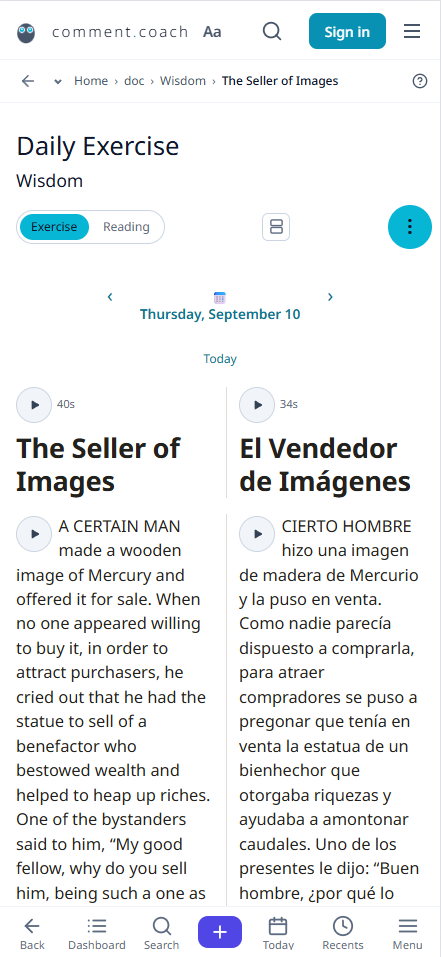
In bilingual mode, the language you are learning appears on the left, your native language on the right. Writing paciencia rather than patience is the exercise, not a formality.
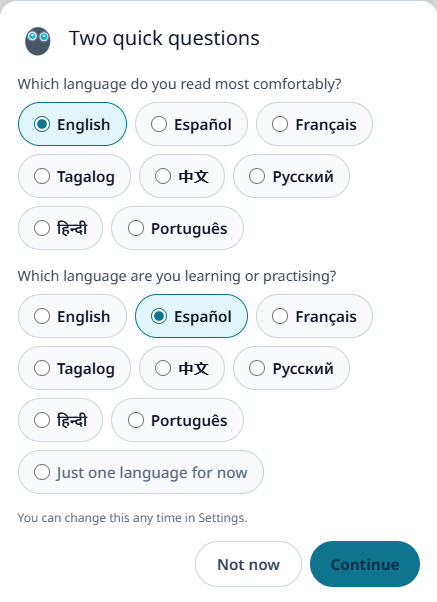
Read the day's text
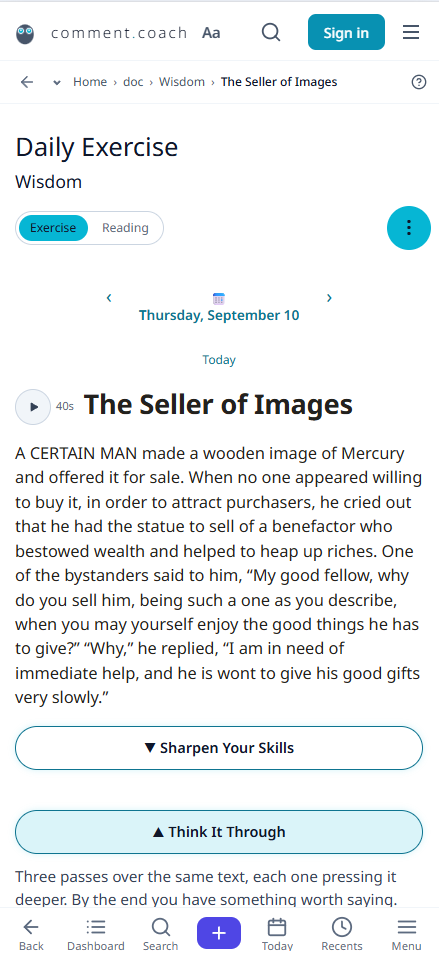
Here is September 10 on the Fables and Maxims plan — The Seller of Images, by Aesop:
A certain man made a wooden image of Mercury and offered it for sale. When no one appeared willing to buy it, in order to attract purchasers, he cried out that he had the statue to sell of a benefactor who bestowed wealth and helped to heap up riches. One of the bystanders said to him, “My good fellow, why do you sell him, being such a one as you describe, when you may yourself enjoy the good things he has to give?” “Why,” he replied, “I am in need of immediate help, and he is wont to give his good gifts very slowly.”
In bilingual mode, the Spanish translation sits beside it:
Cierto hombre hizo una imagen de madera de Mercurio y la puso en venta…
The date and the set it came from are both named above the text. That is also the way back to the calendar.
Listen to it
Press play and the day's text is read aloud — one play button per language, each in a voice that belongs to it.
- Seven speeds, from 0.5× to 3×, on a slider rather than a menu.
- Replays are free. Each clip is kept on your device the first time it is spoken, so listening to the same passage five times costs one trip to the network.
- It reads what is on the screen. Opened citations are read where you opened them. Closed ones are skipped.
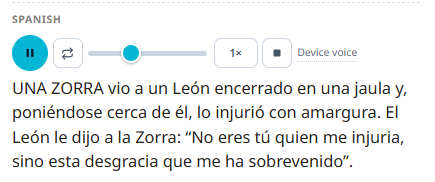
Step 1: Key words
Read the text carefully, then give the words that capture it. There's no right answer — it's your reading of it.
For September 10's fable, we enter: Selling the Promise.
After you submit you'll see what you chose yesterday, and the word you've reached for most this month. Over time your choices say something about what you keep noticing.
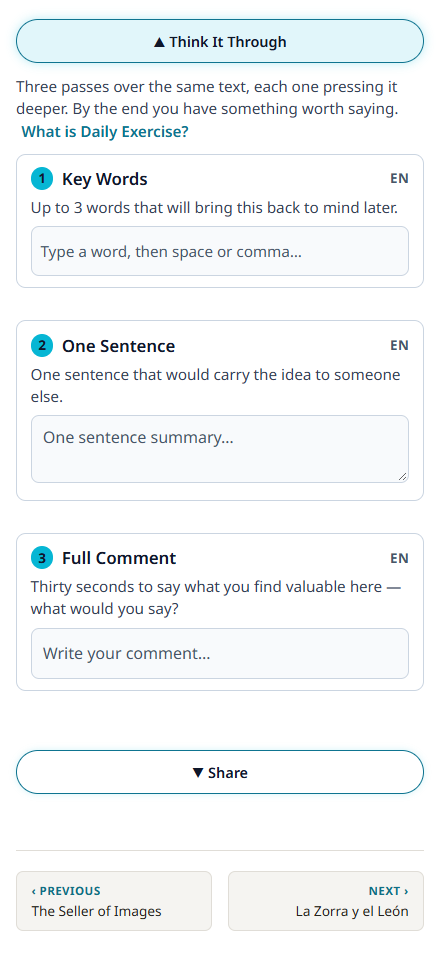
Step 2: One sentence
Distil the reading into a single sentence. This is harder than it sounds, and that is the point — it makes you find the core message and say it plainly.
For September 10:
If something truly made people rich, the seller would keep it instead of selling it.
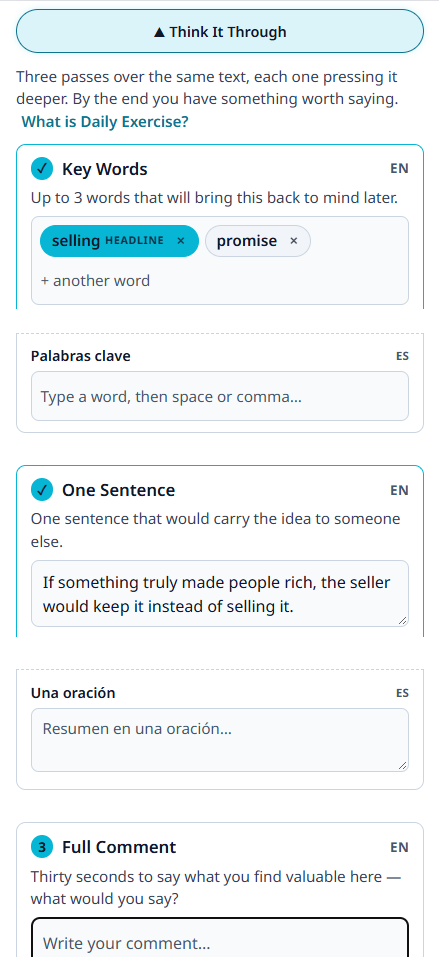
Step 3: Full comment
This one opens the workbench — the same full-screen tools you get for a comment on any paragraph, anywhere in Comment Coach. There is no separate, lesser editor for the day.
For September 10:
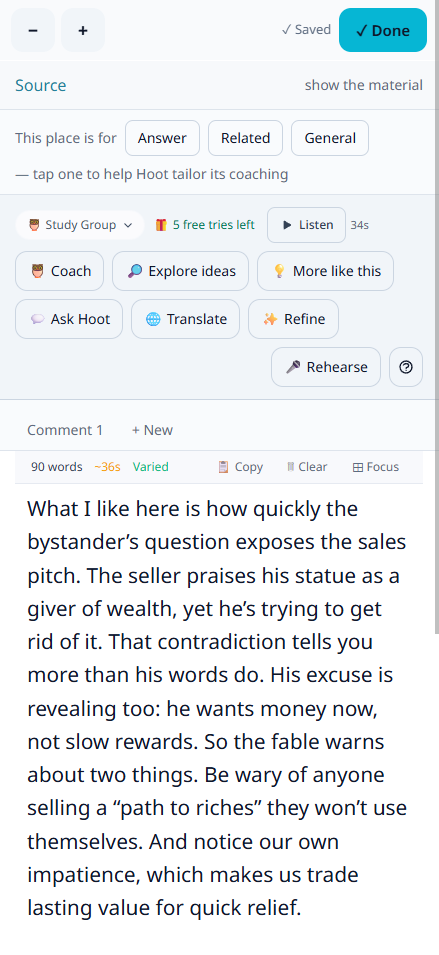
What I like here is how quickly the bystander's question exposes the sales pitch. The seller praises his statue as a giver of wealth, yet he's trying to get rid of it. That contradiction tells you more than his words do. His excuse is revealing too: he wants money now, not slow rewards. So the fable warns about two things. Be wary of anyone selling a “path to riches” they won't use themselves. And notice our own impatience, which makes us trade lasting value for quick relief.
Word count and speaking time are shown as you type, because how long it takes to say is the fact you cannot get by reading it.
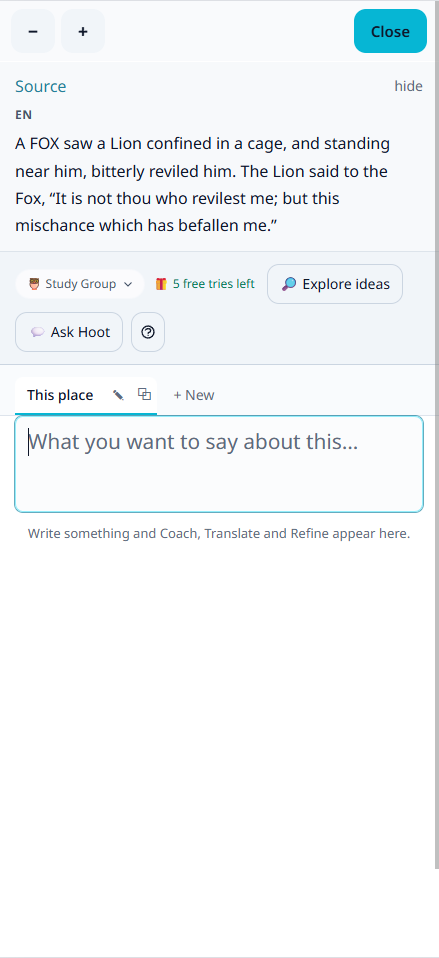
Coach your comment
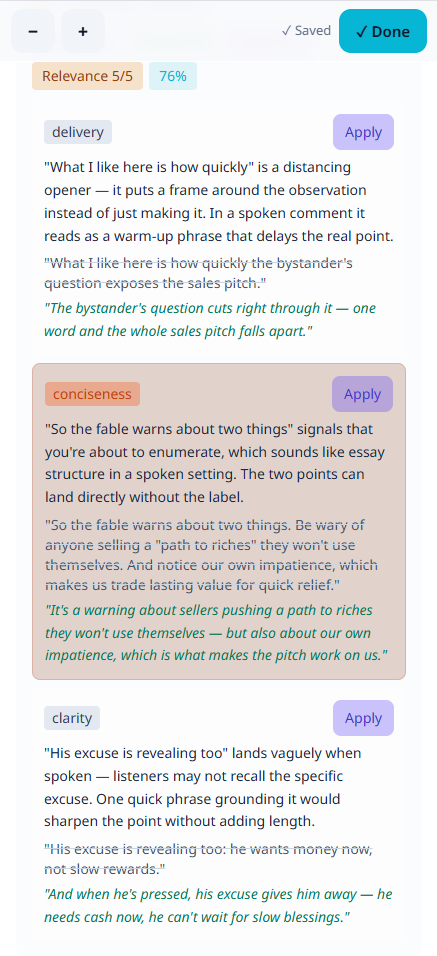
Once you have a sentence or more, tap Coach. Hoot reads your comment against the passage and gives you specific coaching — clarity, conciseness, depth, and relevance — with suggestions you can apply in one tap.
In a second language the coaching also covers grammar, vocabulary, and natural phrasing — the things a native speaker would catch.
Each suggestion shows what it would change. Tap to apply it, and your comment updates. You can apply one, several, or none — it's coaching, not autocorrect.
Translate your comment
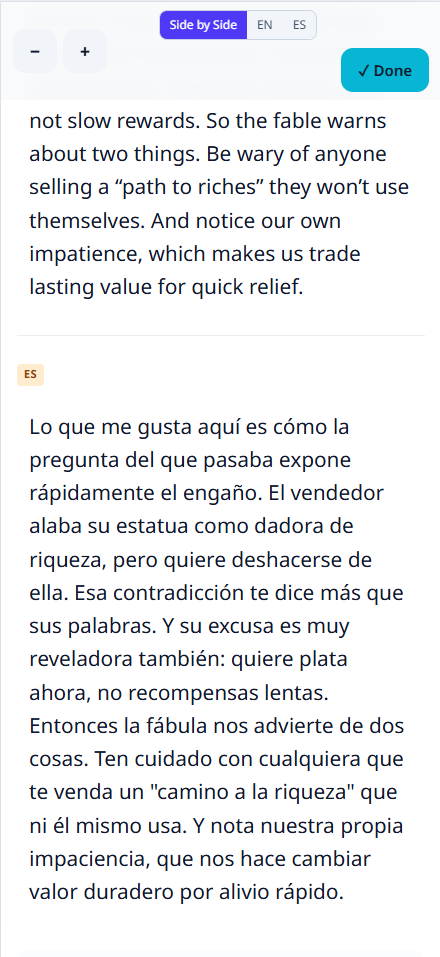
Tap Translate and the same comment appears in your other language, yours to edit. The translation fills the other column — it never overwrites anything you have already written there.
Reading in two languages, each column answers for itself: key words in English and key words in Spanish, a sentence in each, a comment in each. Translate lets you start from either side.
Rehearse it
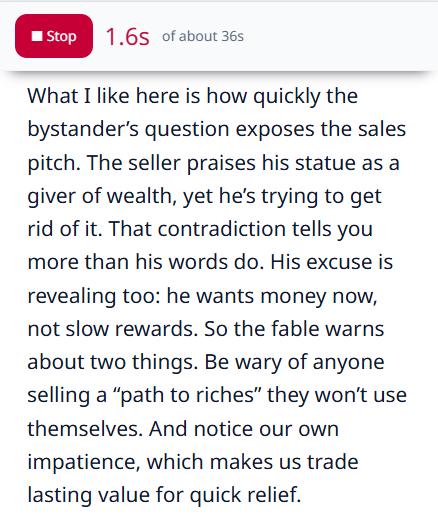
Tap Rehearse and record yourself saying your comment. When you play it back, you hear how it actually lands — pace, clarity, whether the sentence that reads well also sounds right.
This is especially valuable in a second language: your ear catches pronunciation and rhythm that your eye lets through when reading.

Refine it
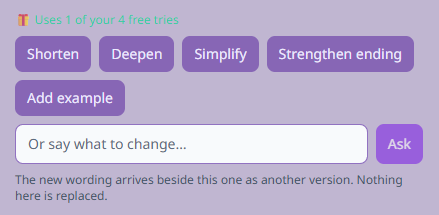
Tap Refine and tell Comment Coach what to change, in your own words: “make it shorter,” “add a question at the end,” “say it more simply.” The revised version appears for you to accept or adjust.
Other tools in the workbench:
- More like this — other angles on the same passage, when you have one idea and want to see three.
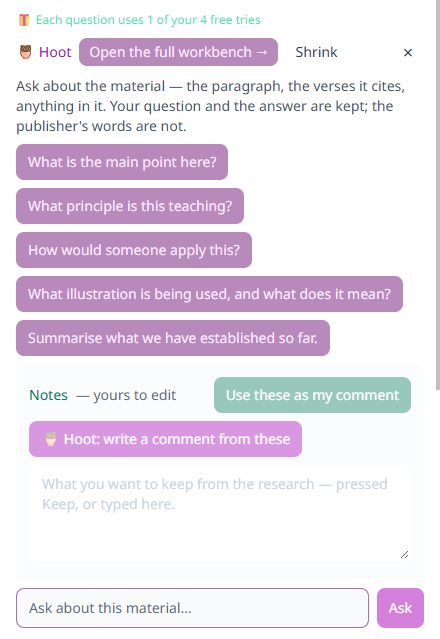
- Ask Hoot — a question about the material, answered from your own copy.
Select a word, get a definition
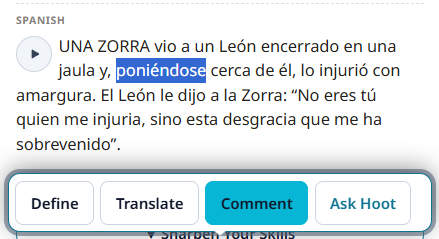
Select any word or phrase in the reading and a toolbar appears with Define, Translate, and Ask AI. Define opens the detail panel — translation, word-in-context, audio, and Dig Deeper — without opening the full vocabulary scan. Translate gives you the phrase in your other language. Ask AI answers a question about what you selected, drawn from the passage.
Sharpen Your Skills
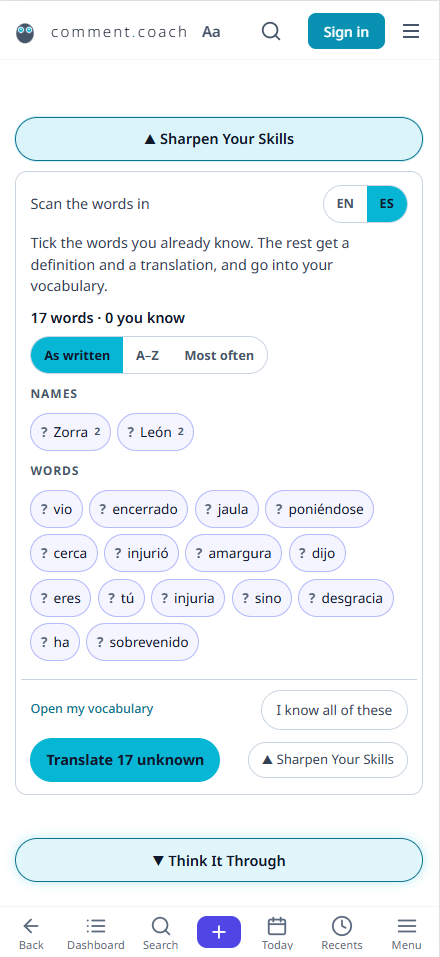
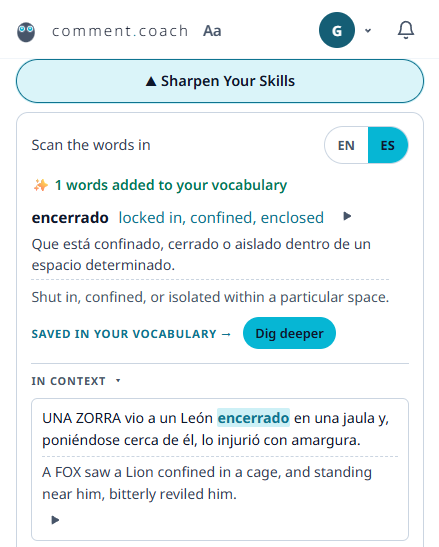
Tap Sharpen Your Skills below the reading. The app scans the passage and shows every word as a tappable chip. Words you have already marked as known show a ✓; unknown words show a ?. Sort by text order, A–Z, or frequency, and hide known words to focus on what you still need to learn.
Tap Translate to get definitions for every unknown word at once. Results are cached, so other readers studying the same passage pay nothing for the same words.
Tap any chip to open its detail panel: word-in-context shows every sentence in the passage that contains the word (with the parallel translation alongside), audio speaks the word and its definition in both languages, and Dig Deeper gives you the lemma, related forms, word family, origin, a usage note, and a bilingual example sentence — plus a conjugation table for verbs.
Words to review & sentence scramble
Below the vocabulary chips, two exercises appear when you have words to work with:
- Words to review — cards showing words you have marked unknown, face down. Tap to reveal the translation. The words you are learning today come back tomorrow as flashcards.
- Sentence scramble — a sentence from the passage, broken into individual words and shuffled. Tap them in the right order to rebuild it. This tests grammar and word order without asking you to produce anything from scratch.
Share
Tap the Share button to send a link for the day to family, friends, or study partners. Copy the link to paste into any chat.
Whoever opens it sees the same text and has to finish their own exercises before seeing anyone else's. That is what keeps it honest, and what makes the reveal worth waiting for.
Import your own daily reading
The built-in sources cover you from day one, so this is optional. If your daily reading comes from a publication available as an EPUB, you can import it right from the sources panel:
- Download the EPUB from the publisher's website. (For example, visit jw.org/library, find the publication in your language, and download the EPUB file.)
- On the Daily Practice page, tap the ⋮ menu and choose Add a source. The sources panel opens.
- Drag your EPUB file onto the drop zone in the Your own daily readings card, or tap Browse files to pick it. You can import more than one file at a time — for example, the English and Spanish editions together.
- Comment Coach detects the format — a book with dated daily entries is recognised. The page switches to your imported source automatically.
You can also drag an EPUB anywhere onto the Daily Practice page itself — the app catches it and opens the importer.
Tips
- Pick the word that speaks to you — there's no wrong answer, and your choices over a month say something about what you keep noticing.
- Read your sentence aloud before you submit it — especially in a second language. Your ear catches what your eye lets through.
- Use Coach after your first draft — it's coaching, not autocorrect. Write your idea first, then sharpen it.
- Rehearse in your second language — pronunciation and rhythm are invisible on the screen. Hearing yourself is the fastest check.
- Play it with one other person — even a single partner turns it from homework into a daily ritual.
- Nothing to write today? Read a portion instead.